> ## Documentation Index
> Fetch the complete documentation index at: https://docs.genfuseai.com/llms.txt
> Use this file to discover all available pages before exploring further.
# Introduction
> Agent workflows let you build powerful automations using agents, app integrations, custom tools, and more.
## What is an Agent Workflow?
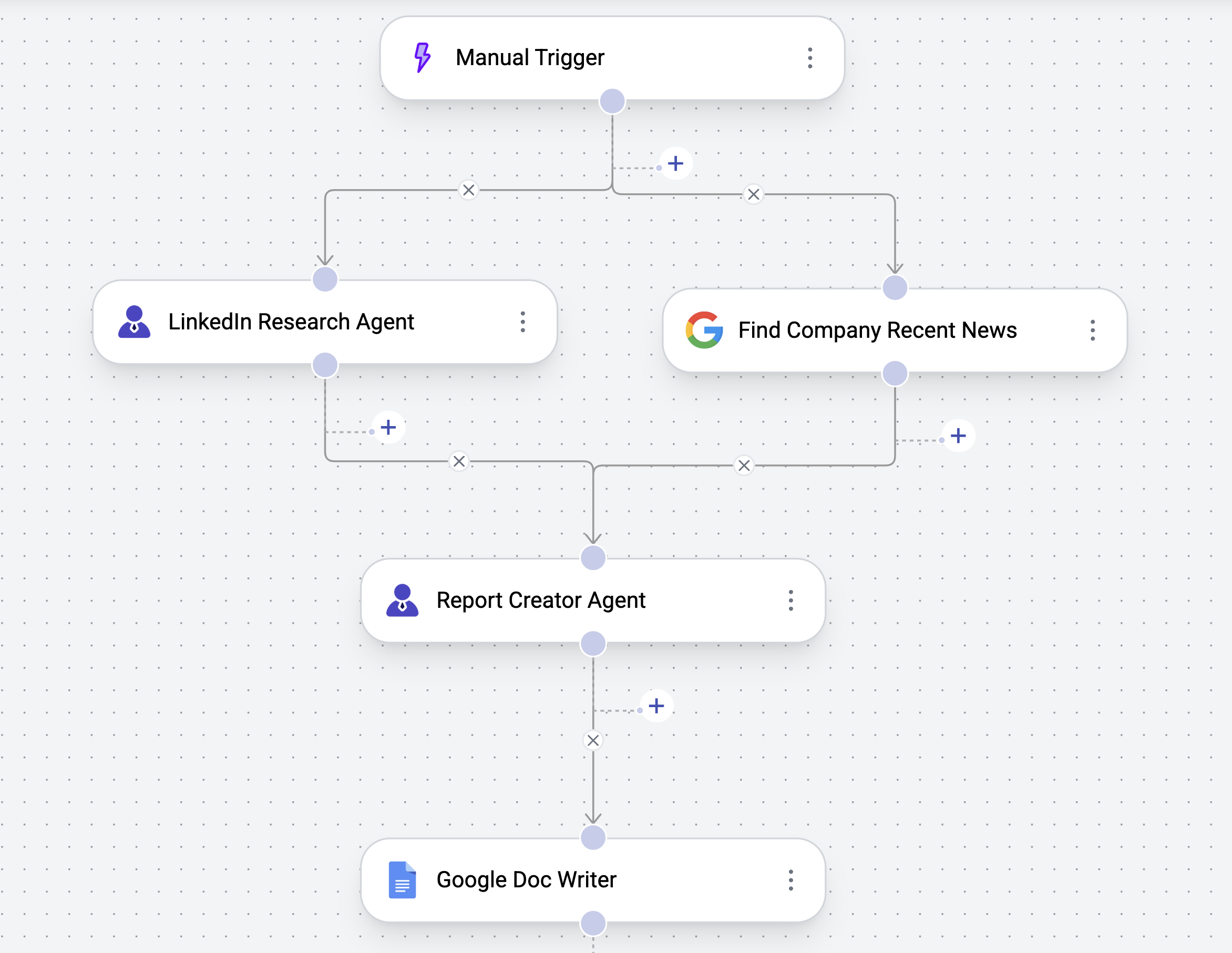
An **agent workflow** is a sequence of interconnected nodes—such as triggers, agents, and tools—that automate tasks end-to-end.\
It combines multiple AI agents and integrations into a single process, allowing you to automate complex multi-step tasks easily.
 ## How to Create a Workflow
Creating an agent workflow is as simple as dragging and dropping components into our editor.
There are two primary ways to get started:
## How to Create a Workflow
Creating an agent workflow is as simple as dragging and dropping components into our editor.
There are two primary ways to get started:
You can use one of our existing agent workflow templates created by domain
experts on our team. Templates are fully customizable and let you get up and
running faster.
Start with a blank canvas and build your agent workflow from scratch. This
is great if you have a specific task in mind or want to build something
unique from the ground up.
## How to Run a Workflow
Once your workflow is ready, you can test it directly within the editor to ensure everything runs smoothly.
The Use tab offers a clean, app-like interface where you can run your workflow and view all past runs.
{" "}
Use the Test button in the top right corner of the builder
to run your workflow. Great for testing and validating that your workflow
works as expected.
The Use tab gives you a clean, app-like interface to run
your workflow. You can also review all past runs and share the workflow with
others.
## Key Workflow Components
Each agent workflow is built from a few key components.
| **Component** | **Description** | **Key Features** |
| :------------------- | :-------------------------- | :----------------------------------------------------------------------------------------------------------------------------------------- |
| **Trigger** | Workflow starting point | • Manual, scheduled, or event-based
• Accepts custom inputs
• Kicks off the workflow |
| **AI Agents** | Intelligent task performers | • Powered by LLMs
• Can reason and act autonomously
• Can be equipped with tools
• Supports Loop Mode and Structured Output |
| **App Integrations** | External system connectors | • Connects to third-party services
• Sends/receives data
• Enables seamless automation across platforms |
| **Core Nodes** | Workflow control logic | • Loading data
• Conditional flow between steps
• Display Output |
| **Custom Tools** | User-defined utilities | • Perform custom actions
• Call APIs or execute custom code
• Tailored to your use case
• Flexible input/output |
## Share as Template
Make your workflows reusable by sharing them as templates with others in your team or community.
When you build a workflow, you have full control over how it’s shared.\
By default, your workflow is private—only accessible by you and your agents.
Click the Share button in the `Use` tab to generate a link that others can use to clone your workflow.
This makes it easy to reuse workflows across teams or build internal templates for repeatable tasks.