> ## Documentation Index
> Fetch the complete documentation index at: https://docs.genfuseai.com/llms.txt
> Use this file to discover all available pages before exploring further.
# Passing Data Between Steps
> Learn how data flows between steps using variables in your agent workflows
### Getting Started with Variables
In your agent workflows, data is passed from one step to another using variables.
Variables are outputs generated by a step and can be inserted into the parameters of subsequent steps.
This makes your workflows dynamic and adaptable to different data inputs.
### Step Options & Variables
Every step has configurable **parameters** that determine its behavior. Options can accept either:
* **Static values:** Manually entered data.
* **Dynamic variables:** Data coming from a previous step.
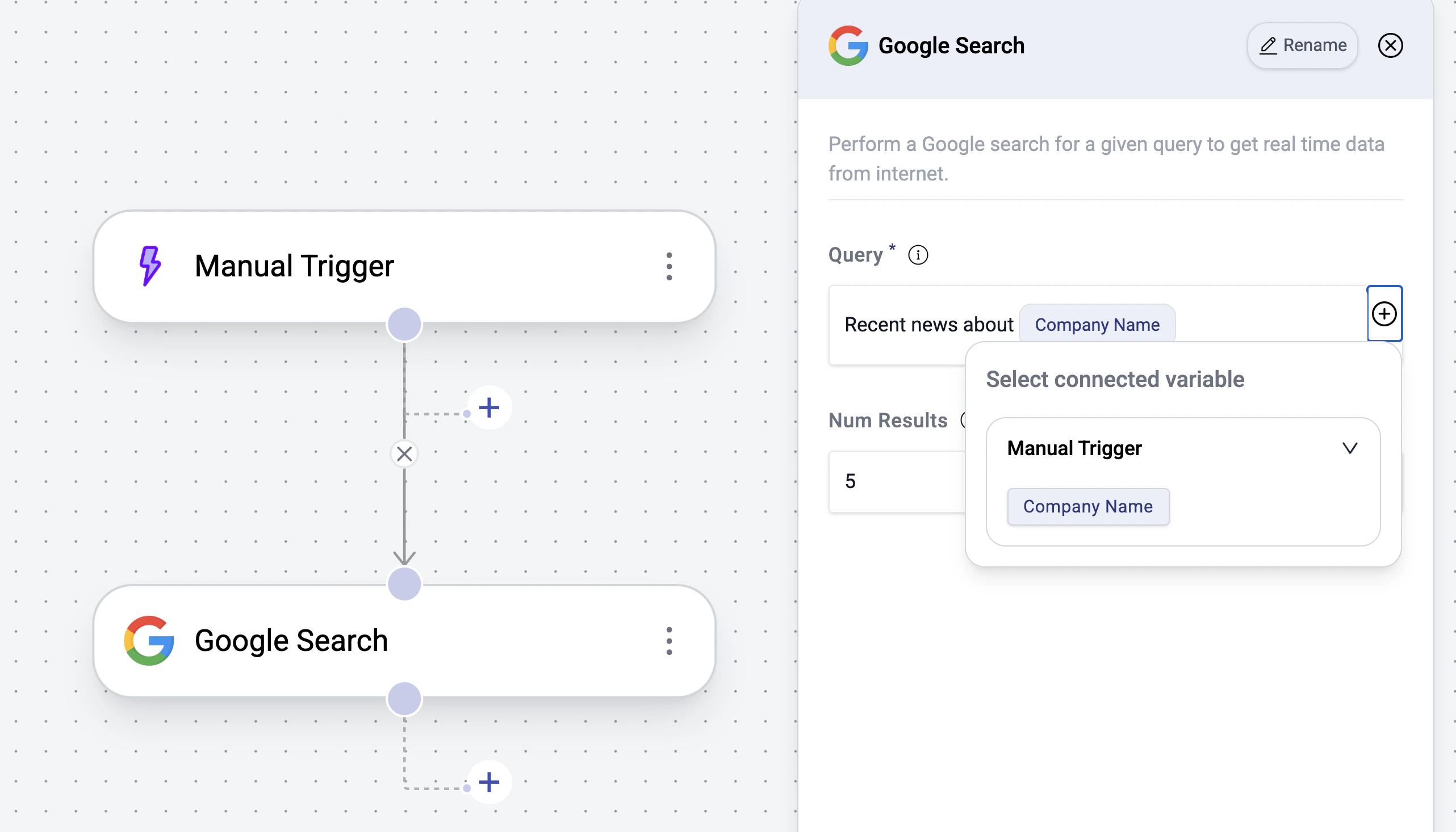
For example, while configuring a `Google Search` query, you might want to customize the query using data from an earlier step.
To do this, simply click the `+` button next to the text field and select the appropriate variable.
 ### Using Variables Across Steps
To successfully pass a variable from one step to another, the two steps must be connected in your workflow. Here’s the simple rule:
* **Direct Connection:** If there’s a line connecting Step A to Step B, Step B can use the outputs from Step A.
* **Branching Workflows:** If steps are on separate branches without a connecting line, variables cannot be passed between them. To share data, ensure that the steps are connected in the same chain.
Since all steps eventually originate from the Trigger step, variables from the
Trigger step are available throughout the workflow, provided the connection
exists.
### Inserting Variables into Step Parameters
To insert a variable into an parameter:
1. Click the **+** button near the input field.
2. A dropdown will display the available variables from previous steps.
3. Select the variable you wish to insert into the option.
### Using Variables Across Steps
To successfully pass a variable from one step to another, the two steps must be connected in your workflow. Here’s the simple rule:
* **Direct Connection:** If there’s a line connecting Step A to Step B, Step B can use the outputs from Step A.
* **Branching Workflows:** If steps are on separate branches without a connecting line, variables cannot be passed between them. To share data, ensure that the steps are connected in the same chain.
Since all steps eventually originate from the Trigger step, variables from the
Trigger step are available throughout the workflow, provided the connection
exists.
### Inserting Variables into Step Parameters
To insert a variable into an parameter:
1. Click the **+** button near the input field.
2. A dropdown will display the available variables from previous steps.
3. Select the variable you wish to insert into the option.